How to import your Chrome bookmarks
Everyone has the folders: Read later, Recipes, Work, untitled folder. Hundreds of links whose titles tell you almost nothing about what is on the other side.
Why bookmark folders stop working
A bookmark stores a URL and whatever the page's title tag happened to say. Not the content, not an image, and nothing about why you kept it. Once you have a few hundred, the title alone is not enough to tell two of them apart — and browser search only matches that title.
The other problem is that they rot silently. A bookmark to a page that no longer exists looks exactly like one that works, right up until you click it.
Bringing the tree across
-
Install the Findy extension for Chrome and sign in. The install link is under Account → Browser extension.
-
Open the extension popup and click Import browser bookmarks.
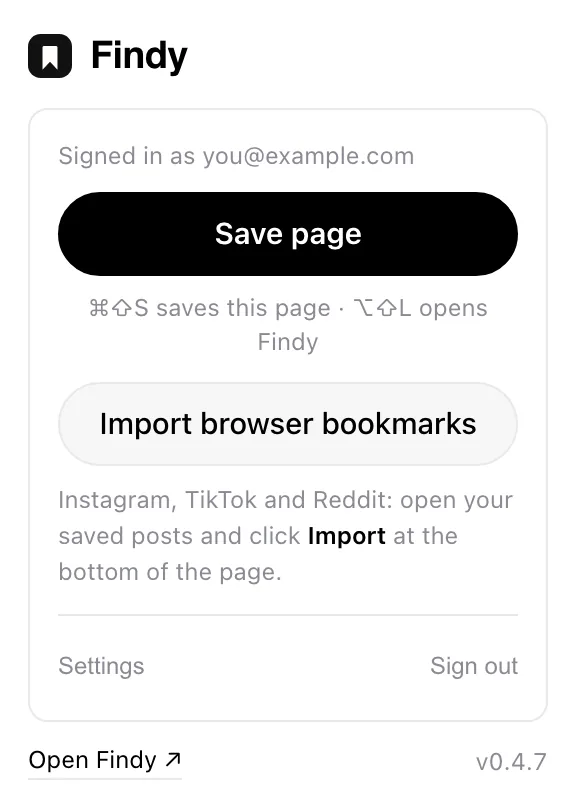
-
That is it. The whole tree comes across in one pass — the extension reads it locally through Chrome's own bookmarks API, so nothing is fetched from the network to do the import itself.
New bookmarks keep arriving
After the first import, anything you bookmark in Chrome shows up in Findy on its own. You do not have to change how you save things — keep pressing ⌘D and they land in both places.
What changes once they are in
Each bookmark stops being a bare title. Findy fetches the page, archives its readable text, and caches a preview image — so a link you saved three years ago becomes searchable by what the page actually said, and still shows you something recognisable if the page has since died.
That is the difference between a folder of links and a library: you can search what is inside them.
Other browsers
The extension is Chrome-only today. If you are on Safari or Firefox, export your bookmarks to an HTML file from that browser, import that file into Chrome, and run the import once — tedious, but a one-off.
Next: Save from any page · All manual pages