How to export your Instagram saved posts
Instagram has no export button for Saved. There is an official data download, but it is not what most people expect — and it will not help you find anything.
What Instagram actually gives you
Instagram does let you request your data, under Accounts Center → Your information and permissions → Download your information. Ask for your saved posts, choose JSON or HTML, and after anywhere from a few minutes to a couple of days you get a download link by email.
What arrives is a list of links. That is close to all of it:
- No images. Saved posts come through as URLs, not the pictures you saved them for.
- No captions. The text that would tell you what a post was about is not included.
- No collections in a useful shape. The folders you carefully sorted things into do not survive as anything you can browse.
- Dead links stay dead. If a post was deleted or the account went private, the URL resolves to nothing and you have no record of what it was.
So the export is real, and it is genuinely your data — but it answers the question "what did I save?" with a wall of instagram.com/p/C4x... and nothing else. It cannot answer "where was that kitchen with the green tiles?", which is the only question anyone actually asks a saved folder.
Why scraping your own Saved page is a bad idea
The obvious workaround is a script that scrolls your Saved page and collects everything. Plenty of tools do exactly this, and it is worth knowing why we stopped: automated scrolling and clicking looks like bot traffic, because it is. It is a reliable way to get an account flagged, and the account at risk is the one holding everything you saved.
Instagram's own web app fetches your Saved posts from a normal endpoint using your normal session. Reading that, once, when you click a button, is a very different thing from a robot pretending to be a person scrolling for ten minutes.
Moving the whole collection into Findy
Findy imports Saved by asking Instagram the same question your browser already asks, in the tab you are already signed into. Nothing scrolls, nothing clicks, and no password is involved at any point.
-
Install the Findy extension for Chrome. Once you have an account, open Findy → Account → Browser extension for the install link.
-
Sign in to the extension. Signing in on either side — the extension popup or the web app — signs you in on both.
-
Open your Instagram Saved page in the same browser, at instagram.com/YOUR_USERNAME/saved/.
-
Click Import in the bar at the bottom of the page. The bar only appears on pages where an import is possible, and you can turn it off per site under Account → Browser extension.

-
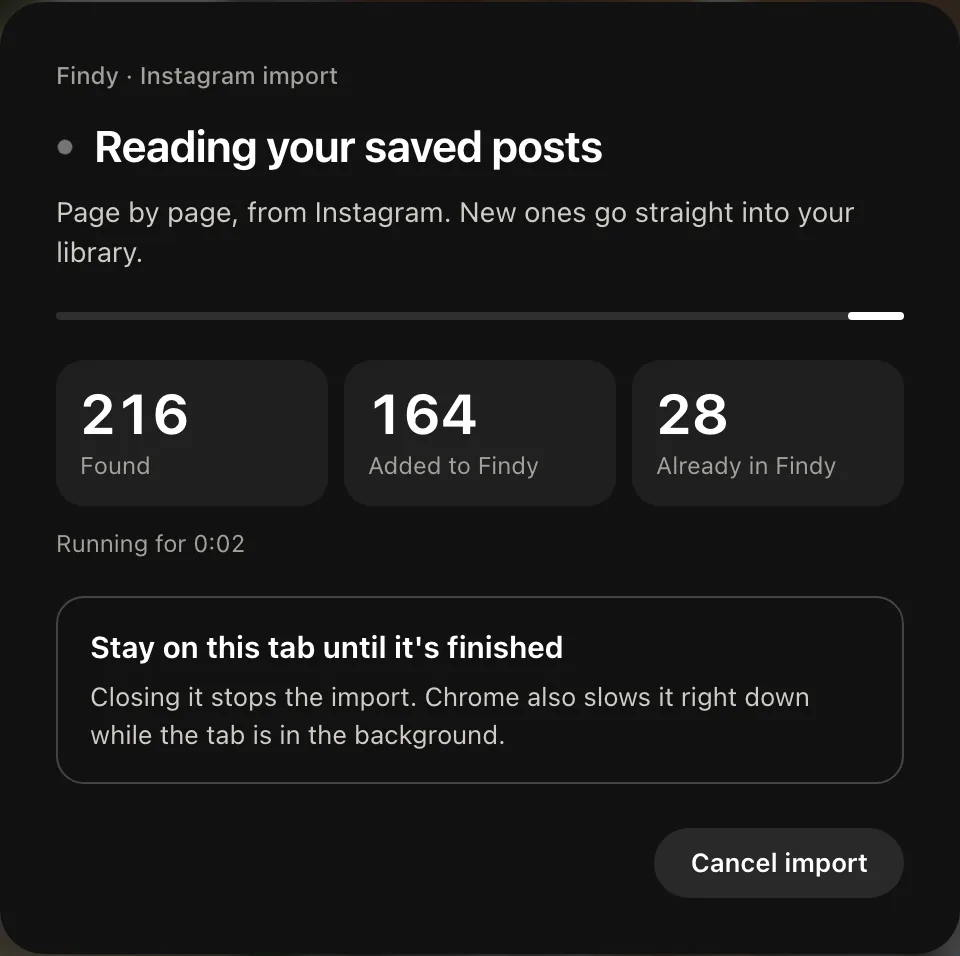
Leave the tab open. Batches are relayed as they are read. A panel over the page shows what it is doing and the counts as they climb; it asks you to stay on the tab, because closing it stops the import. Progress also shows under Account → Import history in the app.
Your collections become tags
If you sorted Saved into collections, those come across as tags rather than being flattened away — so a post you filed under "kitchens" is still findable as #kitchens once it is in your library, alongside everything you saved from anywhere else.
What happens after the import finishes
Importing is the fast part. Afterwards Findy keeps working in the background: fetching each post's caption and page text so it becomes searchable, and caching a copy of the image so the card survives the original being deleted. A large collection keeps filling in for a while after the bar says it is done.
Finding something afterwards
This is the part the official export cannot do at all. Once captions and page text are indexed, you can describe a save the way you actually remember it — "the cabin with the wood stove", "that pasta reel" — and get it back even when those exact words appear nowhere in the post.